
Skip to content
When autocomplete results are available use up and down arrows to review and enter to go to the desired page. Touch device users, explore by touch or with swipe gestures.
    • Member Login
  • Main Menu
  • Calculations
  • Forms
  • Invoices
  • Letters
  • Library
  • Rates
  • Websites
When autocomplete results are available use up and down arrows to review and enter to go to the desired page. Touch device users, explore by touch or with swipe gestures.
  • Member Login
When autocomplete results are available use up and down arrows to review and enter to go to the desired page. Touch device users, explore by touch or with swipe gestures.
    • Member Login
  • Main Menu
  • Calculations
  • Forms
  • Invoices
  • Letters
  • Library
  • Rates
  • Websites

Calculations

  • About Calculations
  • About Each Workbook
    • • ActiveX Settings
    • • Automatic Updates
    • • Formulas not working
      • • General
      • • Import Excel
      • • Paste Excel
      • • Tables
    • • Macros
    • • Multiple windows
    • • Printing
      • • Excel data
      • • Links
      • • PDF files
      • • Screenshots custom
      • • Screenshots standard
    • • Version of Excel
  • 2027 Calculations
  • 2026 Calculations
  • 2025 Calculations
    • • 2024 Calculations
    • • 2023 Calculations
    • • 2022 Calculations
    • • 2021 Calculations
    • • 2020 Calculations
    • • 2019 Calculations
    • • 2018 Calculations
    • • 2017 Calculations
    • • 2016 Calculations
    • • 2015 Calculations
    • • 2014 Calculations
    • • 2013 Calculations
    • • 2012 Calculations
    • • 2011 Calculations
    • • 2010 Calculations
    • • 2009 Calculations
    • • 2008 Calculations
    • • 2007 Calculations
    • • Break-Even Analysis
    • • Budget, Quick
    • • Budget, Personal
    • • Cashflow Forecast
    • • Charge-out Rates
    • • Profit Manager
    • • Property Investment
    • • Tax Money
  • Business Valuations (SMEs)
  • Division 7A Loans
  • Financial Calculations
  • Pay Rates & Conditions
Accountants Desktop Automatic Updates

Automatic Updates

Microsoft regularly releases updates for Excel and the other Microsoft 365 applications. These updates do more than add new features — they also include bug fixes, security updates and improvements to reliability and performance.

For that reason, we recommend checking that Automatic Updates are enabled in Excel.

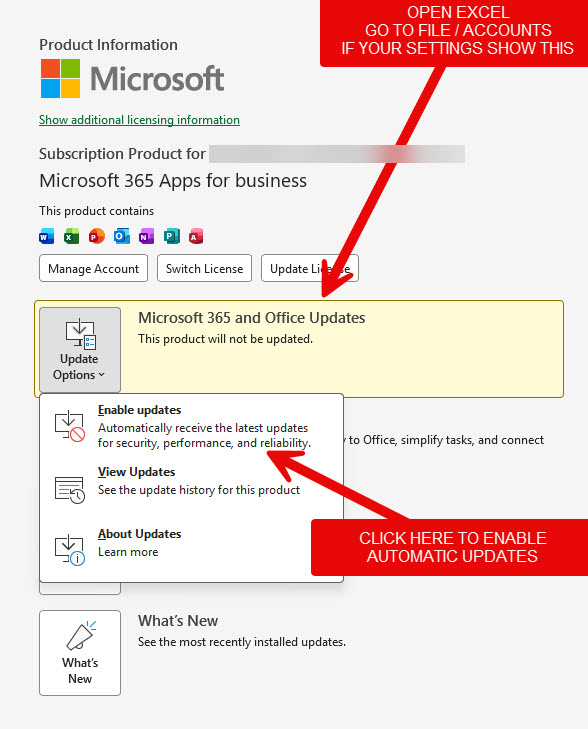
You can check this from:

File → Account → Update Options

Your Office Updates section should indicate that updates are automatically downloaded and installed.

Keeping Excel up to date is particularly important when working with larger or more complex workbooks. If Excel is running an older build, you may be missing fixes Microsoft has already released for problems affecting stability, calculations, printing, VBA or other Excel functions.

If automatic updates have been disabled, select Update Options → Enable Updates, then select Update Now to install any available updates.

Tip: If Excel is behaving unexpectedly or closing without warning, checking that Microsoft 365 is fully up to date should be one of your first troubleshooting steps.
© 2026

Accountants Desktop | Privacy Statement | Terms & Conditions | Website Designed and Developed by Web Bird Digital

  • QUICK LINKS
  • RECENT UPDATES
You are not logged in

Please log in to view all of the site’s features.

Member Login