Automatic Updates
Microsoft regularly releases updates for Excel and the other Microsoft 365 applications. These updates do more than add new features — they also include bug fixes, security updates and improvements to reliability and performance.
For that reason, we recommend checking that Automatic Updates are enabled in Excel.
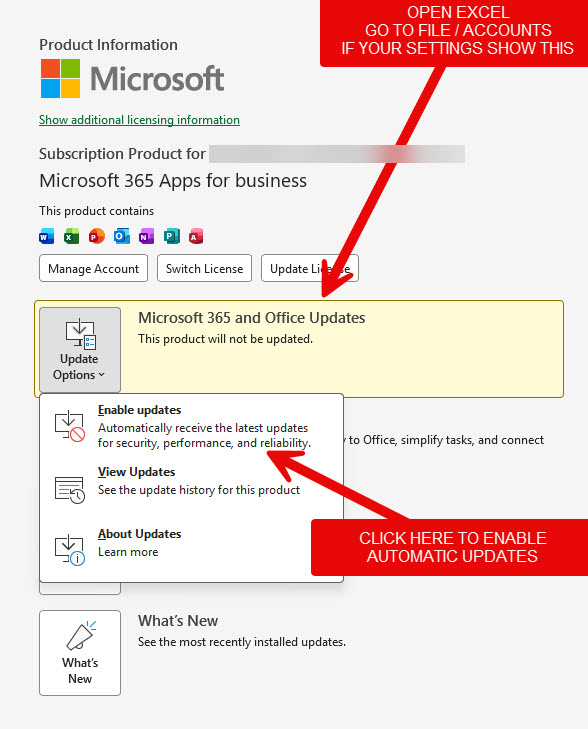
You can check this from:
File → Account → Update Options
Your Office Updates section should indicate that updates are automatically downloaded and installed.
Keeping Excel up to date is particularly important when working with larger or more complex workbooks. If Excel is running an older build, you may be missing fixes Microsoft has already released for problems affecting stability, calculations, printing, VBA or other Excel functions.
If automatic updates have been disabled, select Update Options → Enable Updates, then select Update Now to install any available updates.
Tip: If Excel is behaving unexpectedly or closing without warning, checking that Microsoft 365 is fully up to date should be one of your first troubleshooting steps.